Showing posts with label iPhoto. Show all posts

Monday, December 23, 2013

Questions and answers

Following a system restore on my MacBook running OS X 10.6.8, I’ve lost permission to access backups prior to the restore. How can I fix this?

This probably occurred because during the restore you’ve been added as a new user additional to the original user. Although your user name may be the same, OS X knows users as numbers, typically making the first admin user 501. You may discover that your current numeric ID is 502. Under the standard permissions set for folders in the Backups.backupdb folder used for storage by Time Machine, this would be seen as a different user, hence lacking permissions to access those backups. Sometimes you can prevent this from happening during a system restore, but once it has occurred, the only reliable way to address it is to change permissions on the affected folders. If you had a tame Unix wizard to hand, there are some neat command line tricks they could use.
I was sad to learn that FileMaker had abandoned its Bento database, and that it’s incompatible with Mavericks. Can I create dual-boot partitions so I can drop back to Mountain Lion to use Bento 4? If so, how?

Bento was a sad loss., but Bento 4 appears to have no compatibility issues with Mavericks, so you can safely upgrade to Mavericks without risking loss of access to your databases. However, you raise an excellent point: how to set up a dual-boot system that will allow you access to both Mountain Lion and Mavericks. If you have access to an external drive capacious enough to contain each partition, you could clone your current Mountain Lion startup volume to it, restart from that external drive, repartition your internal drive, clone the Mountain Lion volume back to its partition and then install Mavericks afresh to the other volume. We would be interested to hear from users who have accomplished this.


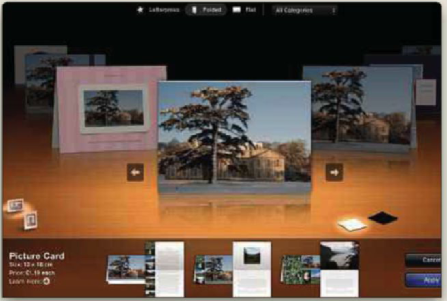
l’m running iPhoto 9.4.3 under OS X 10.8.5 and haven’t printed directly from iPhoto for some time. The other day I went to do so, only to be told that the theme was missing. Where does iPhoto keep themes, and how can I workaround this?
 Normally, current iPhoto themes are stored inside the iPhoto app itself, in the path iPhoto.app/ Contents/Resources/Themes. Some localised components are tucked away in the Themes.Common folder inside the Resources folder there. Additional themes appear in /Library/Application Support/iPhoto/Themes. You might be able to keep themes in folders having a similar path in other libraries, including that in your Home folder, but those aren’t usual. When themes are correctly located, iPhoto should find and use them automatically. It’s worth repairing permissions to ensure this isn’t the result of incorrect permissions. However, you probably used a legacy theme that hasn’t ported across to an update, or has become lost. If iPhoto can’t handle an old theme, change theme via the button at the top right of the window.


Sunday, December 22, 2013

RECENT CHANGES

App Store products have stringent ‘sandbox’ requirements that are reflected in locations used for their support and preference flies. The main point of entry is through ~/Library/

Containers; each installed app there has its own folder, containing a miniature home folder constructed largely of links to your own folders, and traditional items such as Application Support and Preferences.

Your home folder also includes sub-folders intended for specific types of media, including Movies, Music and Pictures. These are the default locations for iMovie, iTunes and iPhoto libraries, but each app lets you change library or content location, which is helpful if you want to keep large libraries on a separate or networked drive. Unless you have good reason to be different, it’s simplest to use these as Apple intends, to keep some order within your Home folder.

If you wish, you can relocate the iTunes Media folder to a location outside your Music folder using the Advanced tool in its Preferences

 
Curiously some find it harder to move or share files between different users on the same Mac than between different Macs. The simplest solution is to place documents in the /Users/Shared folder, which all user accounts can access. This can have its own Library folder, which is useful for sharing fonts between some but not all users. An AirDrop virtual drive appears in Finder windows when activated.

FILE AND FOLDER STRUCTURE  -  True to its name, the system library contains components essential to OS X, hardware and everything that works at low level. A typical example is /System/Library/Extensions, which contains code that extends the OS X kernel to address hardware such as graphics cards and Thunderbolt ports. Third-party products can install their own kernel extensions (.kext files) there, but an errant .kext can readily cause kernel panics and other serious issues. The system Fonts folder must contain those fonts required by OS X, currently around 43 files, but shouldn’t contain others.

The main library houses support files that are common to all users. In its sub-folders, you’ll find the great bulk of the fonts that you have installed, third-party System Preferences panes and extensions, and in Application Support all manner of files required to make Apple and other apps work properly. In contrast to the system library, it’s tailored by apps and other tools to make your Mac what it is. The Library in your home folder is more personal still, containing your personal preference settings and all other support material specific to you. Although usually hidden from the Finder, it’s easily revealed by pressing Alt when you open the Finder’s Go menu.
 
You don’t have to install apps in the top-level Applications folder, and can run them temporarily from within most other folders, including the Documents folder in your Home folder (~/Documents) if you wish. However, most users find it best to segregate apps into the Applications folder; you can use the folder of the same name in your Home folder if you want to limit use of that app to just yourself, but updaters may not notice them there. Indeed, nesting apps inside custom folders inside your Applications folder can sometimes confuddle updaters, so you’re best installing each in the default location in /Applications.

If your Mac is sharing files or more over a network, then you should see a top-level Network folder offering you those shared facilities. Sometimes routers and other devices appear there even if they’re not offering any shared resources, though.

Sticking to this standard form of folder layout ensures OS X can find the right files at the right time, and you’re never upset by reports of missing fonts or other resources. However, you can be more creative within your home folder, which is what it’s intended for.